An integration needs permission to send measurements, but it does not necessarily need permission to manage a whole account. Choosing the right credential and resource scope makes an integration easier to operate and easier to replace when its responsibility changes.
MetriBeacon separates telemetry keys from machine-management credentials and remote MCP access. This guide focuses on creating and maintaining telemetry keys, understanding their scope and replacing them without losing track of the senders that depend on them.
Choose the credential for the job
Device or telemetry keys with the mbk_ prefix send readings for their permitted resources. Machine credentials with the mbm_ prefix manage resources according to their explicit permissions. Remote MCP uses a separate access token.
These credential types are not interchangeable names for one unrestricted secret. For the classic telemetry ingest interface, use the supported telemetry key rather than substituting a machine credential. Give a management integration only the read or write permissions its task requires.
The key guide explains the telemetry-key controls. For a conversational or automation client using remote MCP, follow the separate MCP access guide.
Decide which monitors the sender needs
Before creating a key, list the monitors the integration should write to. A script that sends one application's measurements usually needs a narrower scope than a shared collector that deliberately serves several monitors.
Choose either selected monitors or the entire workspace. A workspace-wide key also covers future monitors in that workspace. Treat that as a continuing grant rather than a shortcut to avoid checking the selection.
The sender must still identify the intended target monitor in its request. A wide key scope does not make an ambiguous payload choose the correct resource automatically. Check both the key's allowed resources and the target identifiers used by the integration.
Create the key and save its full value once
Open Keys, check the workspace and create a key with a descriptive name. Include enough context to recognise the integration later, such as its service and environment. Avoid names that imply ownership or permissions the key does not actually have.
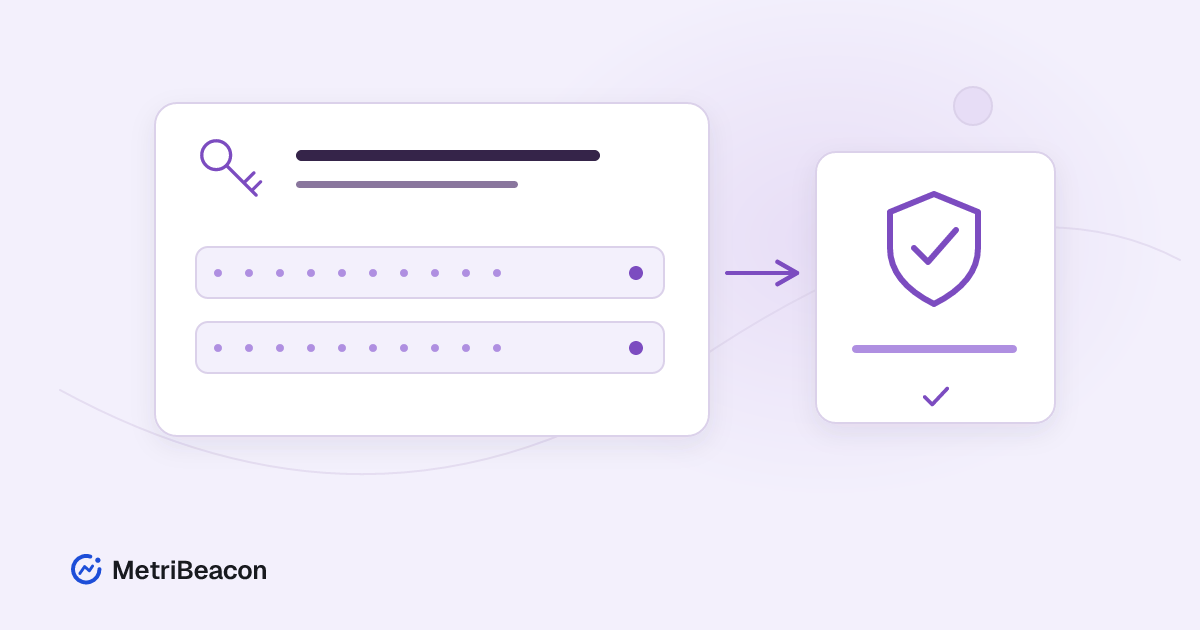
Select the intended monitors or workspace scope, review the selection and save. The full secret is displayed only once. Copy it directly into the protected configuration or secret store used by your integration before closing the result.
Do not put a key into a URL, public repository, shared article, chat transcript or ordinary application log. Keep HTTP authorization headers out of debug output as well. Store a reference to where the credential is managed in your own operating process, rather than copying the secret into every handover note.
Verify actual data reception
Configure the integration using the HTTPS API documentation and the correct target identifiers. Start with the measurements the integration is intended to send. Review request results and the monitor's current readings.
A key-use timestamp is helpful context, but contact alone does not prove that the expected measurement was stored. Check the series name, unit, observation time and latest value in MetriBeacon. Confirm that the data belongs to the intended monitor and workspace.
If the integration retries a request, preserve the stable measurement identifiers and follow the documented retry behaviour. Creating a new key for every retry does not solve an ingest or data-format problem.
Understand what rotation changes
Rotation replaces a key's secret and stops the old key immediately. It does not provide an automatic overlap window while all of your senders update themselves. Identify every consumer before choosing this action.
For a directly managed API integration, an orderly change can use a separate new key with the required scope: create it, update the intended senders, verify data reception and then revoke the old key once it is no longer needed. Available key allowances still apply. Do not leave both credentials active indefinitely without a reason.
If you use the explicit Rotate action, plan for the immediate cutover and update the consumers using that key. A sender that continues reading the old secret will fail authentication. Losing the once-displayed new value requires another deliberate replacement, not a way to reveal the previous secret again.
Treat installed-agent keys in their own context
A server installation key can have an installation origin and additional relationships used by the managed agent. Read that context before replacing it with a generic integration key.
Use the relevant server and agent configuration workflow for installed collectors. Changing a key in one location does not automatically update every protected configuration file or transfer an agent's installation relationship to another monitor.
The agent configuration guide helps you locate the correct settings. After an agent change, verify fresh measurements and its confirmed configuration state rather than assuming that an edited filename completed the whole operation.
Revoke access that should end
Revoke a key when its integration is retired or its access should stop. Check its consumers first if the change is planned. If a credential may have been exposed, coordinate the replacement and the access termination according to the circumstances instead of continuing to rely on the old secret.
Revocation and rotation do not remove the monitor's historical measurements. They change whether future requests can authenticate with that credential. Review the remaining keys separately; one key's revocation does not imply that every other permitted integration has stopped.
Workspace membership and resource permissions also matter. A key does not override the surrounding account and workspace authority. Investigate those relationships if a previously working integration loses access after a deliberate permission change.
Diagnose the failure before replacing another key
An authentication failure can indicate an old, revoked or incorrectly copied secret. A permission failure calls for a check of scope and target. A rate or quota response calls for the relevant waiting period or capacity review. Read the specific error and response headers before choosing a repair.
Start with a small checklist: correct credential type, correct secret source, correct workspace, permitted monitor and correctly identified payload. Then check data formatting, time fields and usage limits.
You can create a MetriBeacon account, connect a monitor and create a narrowly scoped key for your own integration. Keep its purpose, consumers and replacement procedure understandable from the beginning. The website/API template below creates a check; it does not automatically configure a telemetry sender or distribute its key.