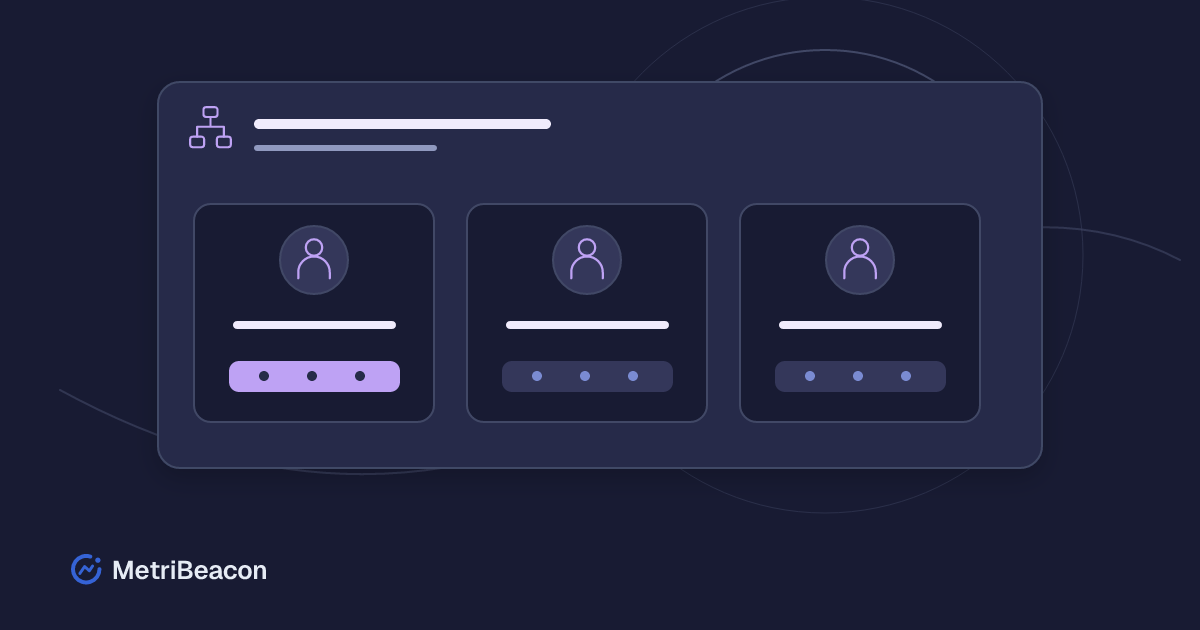
Monitoring is easier to operate when the right people can see the right services and make the changes they are responsible for. Sharing one account makes that responsibility harder to understand. Workspace membership in MetriBeacon gives each person their own access and a role appropriate to the work.
This guide explains invitations, workspace roles and selected-group access. It focuses on everyday collaboration, including what to check when a person cannot see a monitor or when the member limit has been reached.
Plan access around a person's task
Before inviting someone, decide which workspace they need and whether they should observe, edit or administer it. A colleague who only reviews availability does not necessarily need the same permissions as the person maintaining monitors and alarm rules.
Use a person's own account for their access. Invitations connect an account to workspaces; they do not turn every participant into the owner of the account paying for those resources. Keep workspace responsibility and personal account settings separate.
If you are still organising the service structure, the group guide explains how to place related monitors and servers into useful views before sharing them.
Choose a workspace role deliberately
Roles describe the level of responsibility in a workspace. They are not interchangeable labels for the same access.
| Role | Typical responsibility |
|---|---|
| Owner | Controls the workspace and its ownership decisions |
| Administrator | Manages the workspace within the administrator's permitted actions |
| Editor | Works on the resources allowed by the assigned scope |
| Viewer | Reads the resources allowed by the assigned scope |
Only an owner can grant administrator access or carry out ownership-only decisions. An administrator can manage the editor and viewer assignments available to them, but cannot use that role to promote themselves or rewrite the owner's role.
An ownership transfer is a separate procedure, not a shortcut through the ordinary role selector. Review its specific confirmation and impact before using it.
Invite a member to the intended workspaces
Open Members, choose Invite members and select the workspaces and roles the person actually needs. Check the email address carefully before confirming the invitation.
A person can have assignments in more than one workspace. Read those assignments explicitly rather than assuming that every row on the members page belongs only to the workspace currently visible elsewhere in the application. Use the page's workspace filters when reviewing a specific service.
Follow the required confirmation steps for a membership change. The recipient accepts the invitation using the appropriate verified account. An invitation has a limited lifetime: the current window is 48 hours. An expired or revoked invitation cannot be treated as an active membership.
Keep pending invitations under review. A typo in an address or an invitation that nobody intends to accept should be corrected deliberately instead of being left as unexplained pending access.
Use selected groups for a narrower resource scope
Owners and administrators have full workspace resource access. Editors and viewers can be assigned access to all resources or to selected groups. The narrower option is useful when a person is responsible for one service inside a shared workspace.
Access to several selected groups is combined. If a member can see the Shop group and the API group, they can see resources belonging to either permitted group; a monitor does not have to belong to both.
The all-resources option also includes future and ungrouped monitors. Treat that as a deliberate continuing grant. Conversely, removing the last selected group does not silently change a restricted member into someone with full access.
Group assignments can change what restricted members see. Review access after moving a monitor between groups, and check the result using the affected person's own view where appropriate. A friendly group name alone is not an access policy.
Review additional areas independently
Access to monitors does not automatically settle access to every related section. Review the available permissions for logs, incidents, maintenance, SLOs, reports, keys and usage according to the person's task.
Start with the smallest set that supports the work and add another area when there is a clear reason. A person investigating application logs may need a different area selection from someone who only reviews a dashboard.
Public status-page editorial roles are managed separately. A workspace member does not automatically gain permission to publish a public incident update. Keep internal operational access and public communication responsibility distinct.
Understand member limits before retrying an invitation
The package and the applicable technical limits determine the available member capacity. Pending invitations can also consume that capacity. Check the current usage and open invitations when you reach the limit.
The Invite members action remains available when the seat allowance is full. In that case it can take you to the package selection with the relevant seat requirement instead of opening another invitation form. Complete a suitable package change or remove access that is genuinely no longer needed.
Sending the same invitation repeatedly does not create additional capacity. Do not remove an active colleague merely to make the warning disappear without considering their responsibilities and current work.
Change or remove access carefully
When someone's responsibility changes, review all of their workspace assignments. Update the intended role, group scope and additional areas together, then complete the required confirmation.
Removing editor access can affect related keys and running work that relied on those permissions. Plan such changes with the person operating the integration. A membership change should not be used as an unexplained way to stop a production sender.
Use the invitation and change-history tabs to understand what is pending and what has changed. If an access problem remains, compare the actual assignment, workspace, groups and area permissions before creating another account or copying resources.
Check the result with a practical handover
For a new viewer, verify that the intended service and dashboard are visible while editing remains outside their task. For an editor, check a permitted resource and the additional areas they need. Explain where incidents and notification evidence can be found.
Keep a short review in your regular operating routine: active members, pending invitations and the responsibilities behind each assignment. You can create a MetriBeacon account, prepare a workspace with your own monitors and invite collaborators once the scope is clear. The website/API template below creates an initial monitor; team access is configured separately under Members.