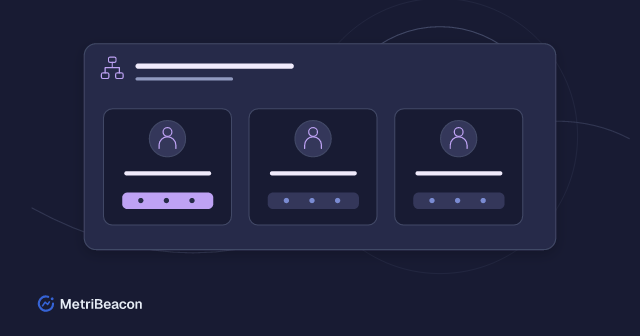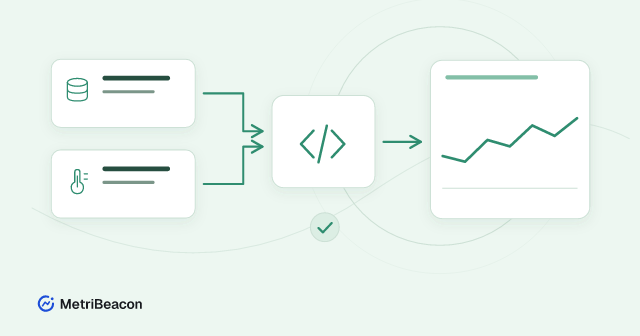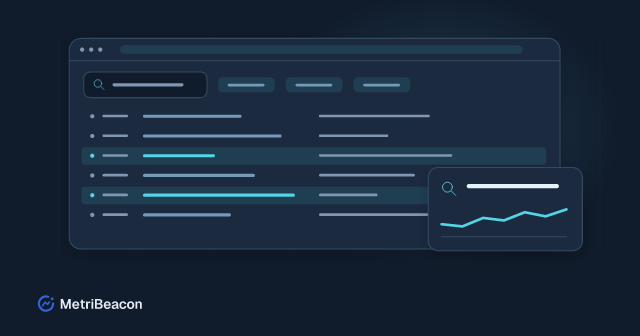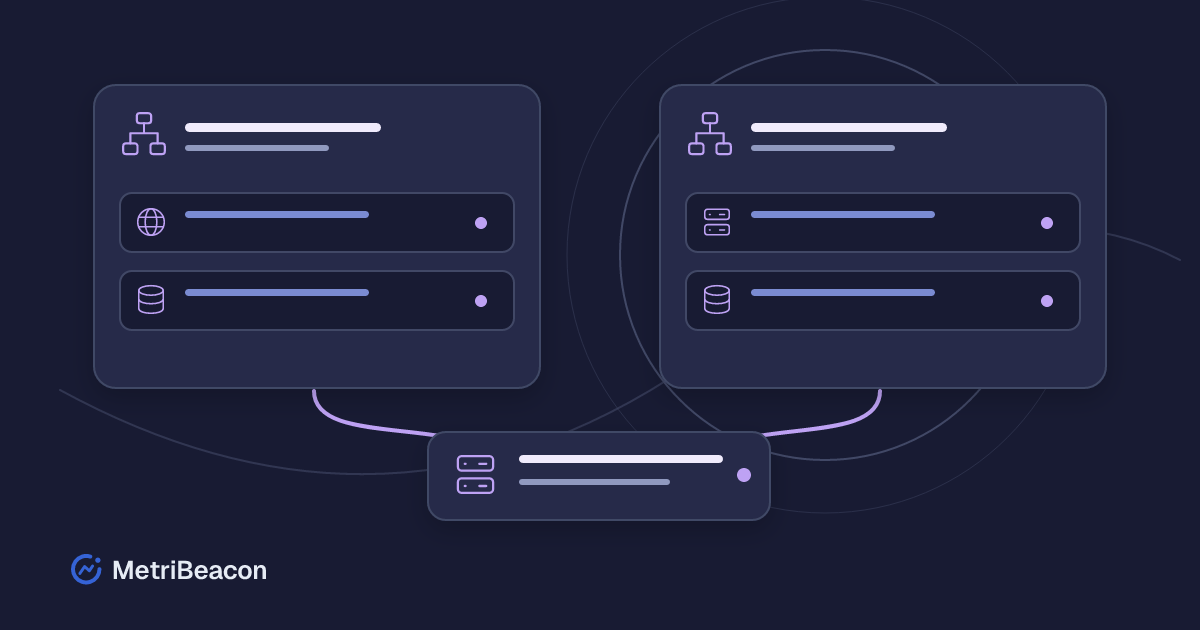
A website monitor, an API check and the server behind them often belong to the same service. Once several services share infrastructure, a flat list makes it harder to find the observations that matter. MetriBeacon groups let you collect related monitors and servers into useful views while keeping their existing measurements.
This guide shows how to build a small group structure, assign resources and use the resulting views. It also explains where groups end and workspace permissions begin.
Choose groups around a question
Start with a question that you need to answer regularly: Is the shop healthy? Which servers belong to production? What should I check after an API deployment? A group should make one of these questions easier to investigate.
Useful starting points include a service, an environment or a location. For example, a Shop production group might contain the public website, its API and the application server. A Servers group can provide another view of that same infrastructure. Use names that colleagues can recognise without opening every monitor.
Avoid creating a separate group for every possible property. Too many nearly identical groups recreate the long list you wanted to simplify. Begin with two or three views that you will actually use.
Understand the difference between workspaces and groups
A workspace provides the context for its monitors, server connections and collaboration. A group organises resources inside that workspace. Groups do not move resources between workspaces, and a group in one workspace cannot contain a monitor from another.
Use separate workspaces when projects or environments need their own context. Use groups when the same set of resources needs several useful views. The workspace guide explains how to manage those contexts.
A group assignment does not create a second monitor or copy its measurements. The website and server checks continue to use their existing configuration. If the same server appears in two groups, you are looking at two views of the same resource.
Create a group and assign monitors
Open Groups and check the workspace selected at the top of the application. Create a group with a descriptive name, then choose Assign for that group.
The assignment panel separates monitors and servers. The count beside each section shows how many resources are selected and how many are available. Use search to find the relevant entries, select them and save your changes.
For a first group, choose a small service that you understand. Add its website check and the server that runs it. Add an API or other monitor if it helps explain that service. The group assignment guide covers the individual controls.
Changes remain a selection until you save them. Cancel closes the panel without applying an unfinished assignment. After saving, open the group and check that it contains the resources you intended to include.
Use multiple assignments without copying resources
A monitor can belong to several groups in the same workspace. This is useful when one resource supports several services or when you need both a service view and an infrastructure view.
| Group | Example resources | Question it helps answer |
|---|---|---|
| Shop production | Website, shop API, application server | Is the customer-facing service healthy? |
| API production | API check, application server | Where should I look after an API change? |
| Infrastructure | Application server and other servers | How are the underlying servers doing? |
The application server can belong to all three groups. Its CPU, memory and filesystem measurements still come from the original server monitor. Grouping does not send another installation command or increase the collection frequency.
Choose membership deliberately. A shared infrastructure resource can make a service view easier to understand, but adding every server to every group will make that view noisy again.
Open the relevant view from the dashboard or lists
Choose a group in the dashboard or in a monitor view to narrow the displayed resources. Keep the selected workspace and group in mind when comparing the result with another page. An apparently missing monitor may simply belong to a different selection.
A group filter does not change the underlying measurements, check interval or monitor state. It helps you focus on a subset of the resources you are allowed to see. Use the dashboard guide to choose the measurements and summaries that are useful for that view.
For an incident, a service group provides a practical starting point: check the website or API result, then inspect the relevant server. A matching group makes this navigation easier; it does not prove that a server issue caused an application failure.
Review access separately from organisation
Assigning a monitor to a group does not invite a colleague. Manage team membership and workspace roles under Members. Reading a group and changing its membership also depend on your permissions.
Where a member has access to selected groups, changes to group membership can affect which resources that person can see. Review those selections when you reorganise a shared workspace. A meaningful group name is an organisational aid, not an access restriction by itself.
A person with full workspace access can still see resources outside the group currently selected in a view. Conversely, selecting all resources in a view does not grant permissions that the account does not have. Check the membership settings when testing a colleague's access.
Keep the structure useful as services change
Rename a group when its purpose changes. Remove a resource from a group when it no longer belongs in that view. Removing an assignment keeps the monitor's measurements and its other group assignments.
Archiving a group and removing a monitor are different actions. Do not remove a monitor merely to tidy up its organisation. Before changing a group used by colleagues, review its members and any settings that refer to it, such as a maintenance selection.
If a group or monitor seems to be missing, check the workspace, current filters, saved assignment and permissions. If you cannot add more groups or resources, inspect the applicable limits under Usage. Repeating an unchanged save will not create more capacity.
Start with one service
Choose a service that you operate today. Create one clearly named group, assign its existing monitors and servers, then open its view in the dashboard. Check that the selection answers a useful operational question before adding more groups.
If you are starting from scratch, create a MetriBeacon account and connect your first website or server monitor. The website/API template below this article can help create an initial check; organise it afterwards under Groups. A small, maintained structure is easier to work with than a large catalogue of unused group names.